Your next step in the Admin tasks is Mapping List Values.
Click Market > Admin > Map Lists.
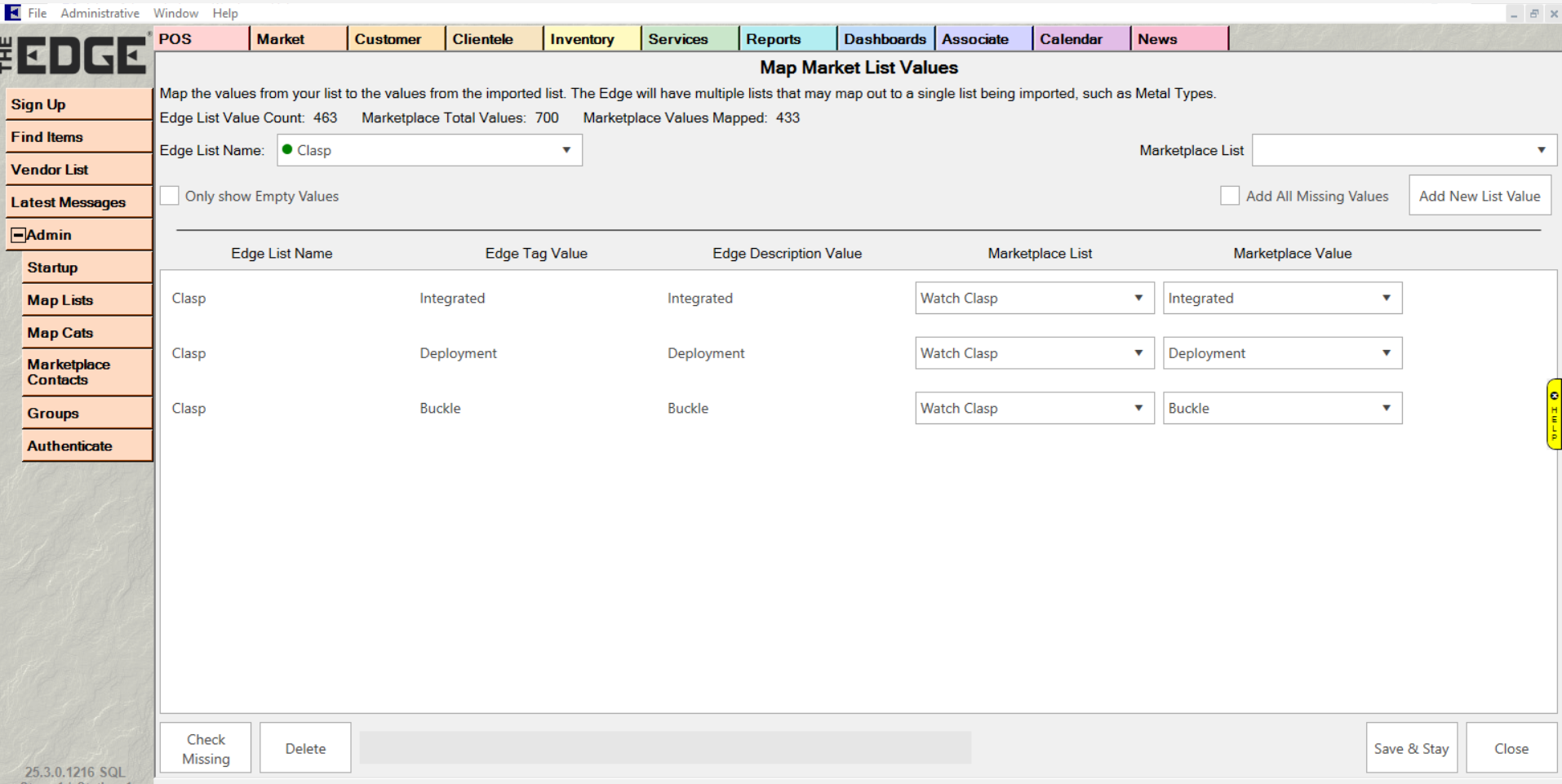
Fields and options on this screen are:
| Edge List Name |
Use this pull down to choose the list you want to map. |
| Only Show Empty Values |
Check this box to only display values that have not been mapped. |
| Edge List Name |
This column lists the Edge List Name the selected value belongs to |
| Edge Tag Value |
This column lists the Edge Tag Value of the selected value |
| Edge Description Value |
This column lists the Edge Description Value of the selected value |
| Marketplace List |
This column lists the Marketplace List of the selected value |
| Marketplace Value |
This column lists the Marketplace Value of the selected value |
| Check Missing |
Clicking this button will look through your Edge Lists and automatically map all values that match exactly to a Marketplace List |
| Delete |
Click this to delete the selected row above. |
| Save & Stay |
Click this to save all unsaved changes and stay on the current screen. |
| Close |
Click this to close the current window |
The top right section is for mapping Edge List values to a Marketplace List (that is different from the default):
| Marketplace List |
Use this pull down to choose the list you want to add values from. |
| Add All Missing Values |
Check this box if you want to add all missing values from the selected Marketplace List |
| Add New List Value |
Click this box to add a new value or all values if the Add All Missing Values is checked |