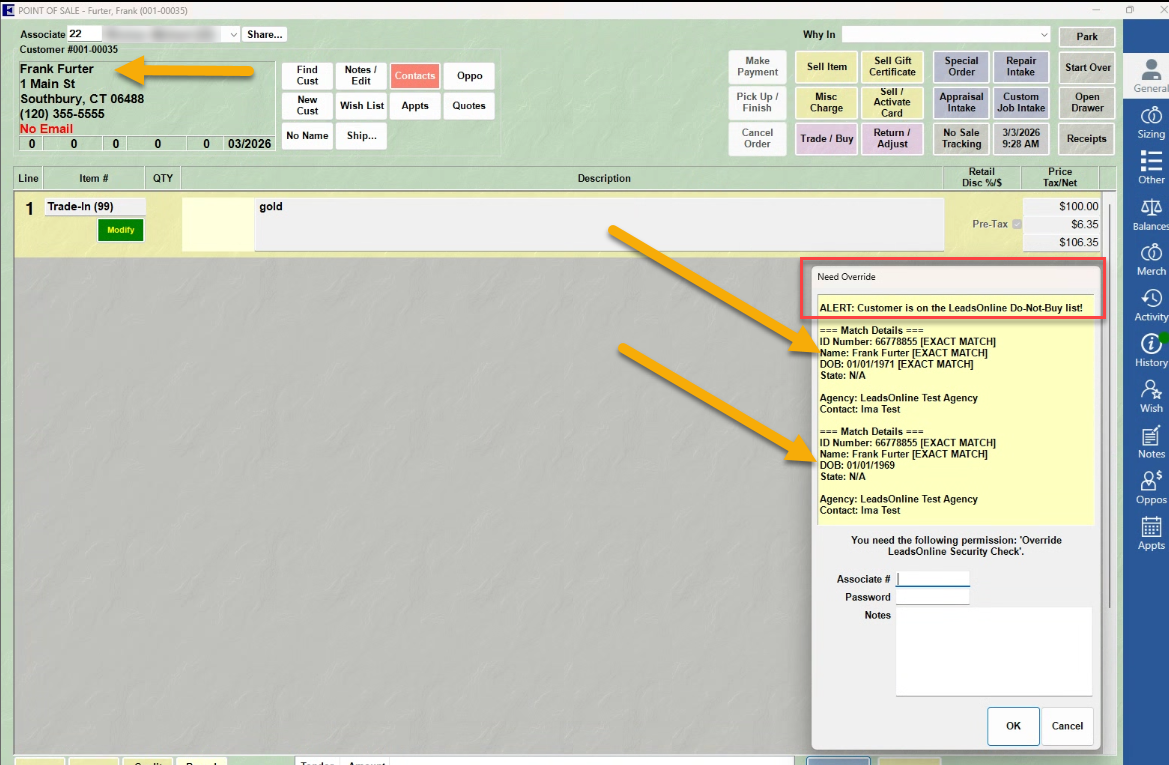
Processing a sale at POS with LeadsOnline begins like any normal sale at POS. First you will Find or Add the Customer and select the Associate, as normal, then add your desired sale lines for the transaction.
The LeadsOnline security check is performed by checking a Customer’s driver’s license against their ‘Do-Not-Buy’ list. This means a license is required for customer validation to be conducted. Edge will alert you when a license is missing from the Customer Record and allow associates to add it to the License # Field on the Customer Record for the security check.
Once the License # has been added, what happens next when you or your associates click Done is determined by your System Options.
If you set the ‘Trade Submission Mode’ System Option to prompt at POS, then a prompt will appear asking if you would like this sent to LeadsOnline.
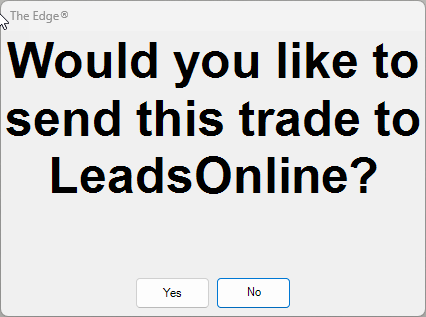
 If you set the ‘Trade Submission Mode’ System Option to Always Send or to Never Send, then you will not see any notification when clicking Done.
If a customer does not pass the security check and an associate clicks Done to complete the transaction, an override window will appear alerting you that they are on the ‘Do-Not-Buy’ list and an override is required to complete the transaction, as well as include the Customer details to confirm the match.