Once you have your LeadsOnline credentials, the next steps are to enter them into Edge and set your System Options and Associate Permissions for any employees who should be allowed to override the LeadsOnline security check at POS.
 Your credentials only need to be entered once, as this activates your integration.
To enter your LeadsOnline credentials:
- Navigate to Administrative > LeadsOnline > Credentials. The LeadsOnline Credentials window will appear.
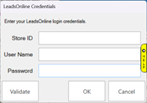
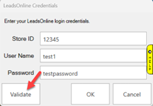
- Enter your Leads Business ID # in the Store ID field, as well as your LeadsOnline username and password and click OK.
- If your credentials were not entered correctly, you will receive a message that your credentials were incorrect.
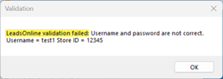
NOTE: If you’re unsure of your credentials, you must contact LeadsOnline Support to retrieve your correct credentials before trying again.