In addition to the permission that allows you to enter your LeadsOnline credentials, there is an optional second Associate Permission labeled ‘Override LeadsOnline Security Check’ which grants your Associates permission to override the LeadsOnline security check which alerts you that the customer is on their Do Not Buy list and lets them proceed with completing the sale.
 This permission only applies to those who enabled (set to True) the ‘Enable LeadsOnline Real-Time Check at POS’ System Option.
To set the Associate Permissions for LeadsOnline:
- Navigate to Administrative > Associates > Associate List.
- Search LeadsOnline to locate the permissions.
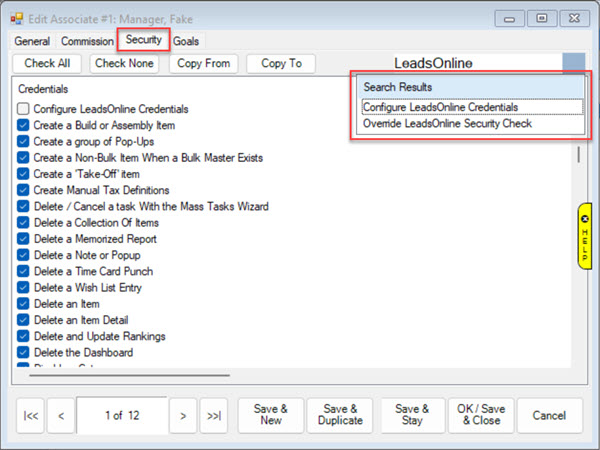
- Check the box on the Permission line and select a Save option to apply the permission.