To manage repairs:
- Select Services > Find > Job. The Find Job filter with the General tab open will appear; it can be used to find Repairs, Custom Jobs, or both.
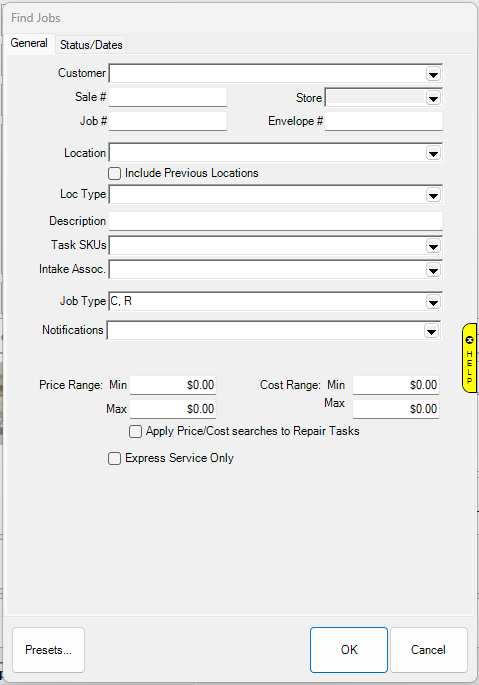
Fields and options in the General Tab of Find Jobs window include:
|
Customer
|
This pull down allows you to choose a specific customer.
|
|
Sale #
|
Returns records with matching sale numbers.
|
|
Store #
|
Returns records with the matching store ID.
|
|
Job #
|
Returns records with the matching job number.
|
|
Envelope #
|
Returns records with matching envelope number.
|
|
Location
|
Returns records with the matching repair workstation.
|
|
Loc Type
|
Returns records with the matching location type.
|
|
Description
|
Returns records with matching phrase in the description.
|
|
Task SKU(s)
|
Returns records with a matching task SKU. You can select from a tree structure.
|
|
Intake Assoc
|
Returns records with matching intake associate.
|
|
Job Type
|
Returns records of type repair, custom job, assembled, or built.
|
|
Notifications
|
PUll this down to filter by notifications.
|
|
Price Range Min/Max
|
Enter a price range to filter by.
|
|
Cost Range Min/Max
|
Enter a cost range to filter by.
|
|
Express Service Only
|
Check this box if you only want to filter by Express Service jobs.
|
- To filter by status or dates, select the Status/Dates tab.
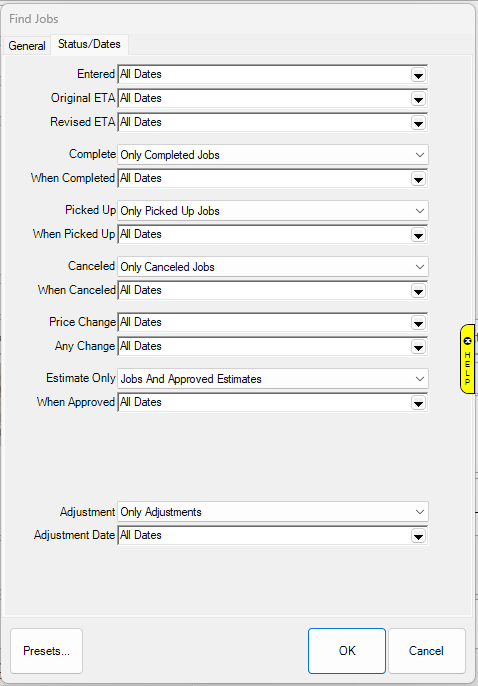
Fields and options in the Status/Dates tab of Find Repairs/Custom Jobs window include:
|
Entered
|
Returns records entered on this date or date range.
|
|
Original ETA
|
Returns records with matching original ETA date(s).
|
|
Revised ETA
|
Returns records with the matching revised ETA date(s).
|
|
Complete
|
Toggles between including only complete job, only incomplete jobs, or all jobs.
|
|
When Completed
|
Choose your date(s) when the job was completed.
|
|
Picked Up
|
Toggles between including only not picked up jobs, only picked up jobs, only picked up envelopes, or all jobs.
|
|
When Picked Up
|
Choose your date(s) for matches to your choice above.
|
|
Cancelled
|
Toggles between including only cancelled jobs, only jobs that are not cancelled, or all jobs.
|
|
When Cancelled
|
Choose your date(s) for matches to your choice above.
|
|
Price Change
|
Returns records that underwent any price change to their record on this date(s).
|
|
Any Change
|
Returns records that underwent any change to their record on this date(s).
|
|
Estimate Only
|
Toggles between including jobs and estimates, jobs and approved estimates, only jobs, only estimates, only approved estimates or only open estimates.
|
|
When Approved
|
Pull this down to choose date(s) of when your jobs were approved.
|
|
Adjustment
|
Returns records with specified adjustment activity.
|
|
Adjustment Date
|
Pull this down to choose date(s) of when your jobs were adjusted.
|
- Complete Find Repair/Custom Job fields as needed to retrieve the appropriate data.
- Select OK. A list of matching Repairs or Custom Jobs will appear.
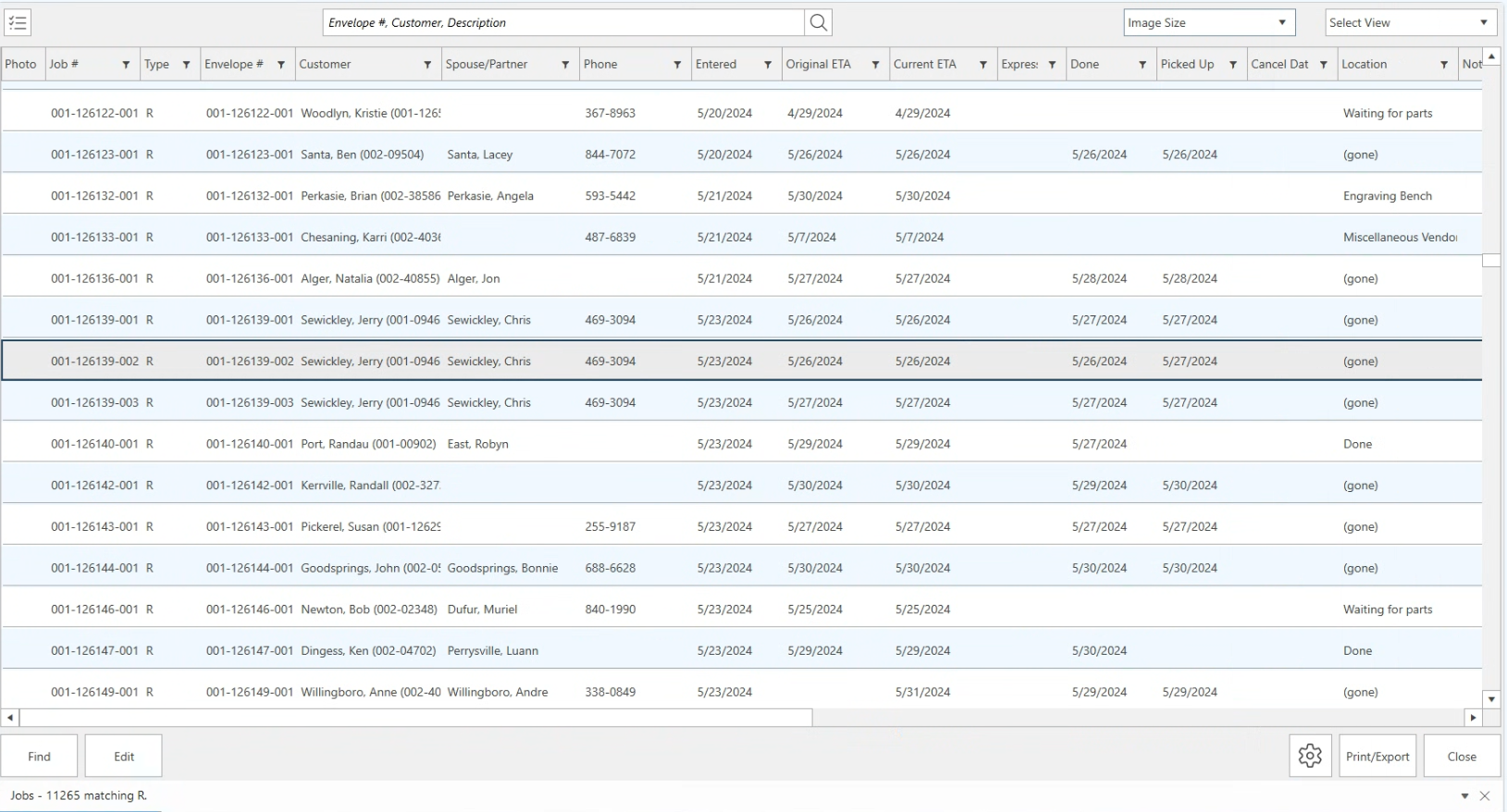
Fields in the Repairs/Custom Job list include:
|
Job #
|
The job intake transaction ID.
|
|
Type
|
The type of job it is: repair, custom, etc.
|
|
Envelope #
|
The number on the repair envelope.
|
|
Customer
|
The name of the customer who ordered the job.
|
|
Spouse/Partner
|
The name of the spouse/partner of the customer who ordered the job.
|
|
Phone
|
The phone number of the customer who ordered the job.
|
|
Entered
|
The date the repair was taken.
|
|
Original ETA
|
The original estimated time of arrival.
|
|
Current ETA
|
The current estimated time of arrival.
|
|
Express
|
Whether the job was express or not.
|
|
Done
|
Date the job was done, if it's done.
|
|
Picked Up
|
Date when the job was picked up, if it's picked up.
|
|
Cancel Date
|
Date job was cancelled, if the job was cancelled.
|
|
Location
|
The location within the job process of the item.
|
|
Notified By
|
Method by which the customer was notified.
|
|
Notify Address
|
What to use to notify the customer.
|
|
Last Notified Date
|
Date the customer was last notified about the job.
|
|
Description
|
A description of the item.
|
|
Condition
|
Condition notes from the job.
|
|
Intake Associate
|
The associate who originally took the order.
|
|
Estimated
|
Whether the job is estimated.
|
|
Approved On
|
Date that the job was marked Done.
|
|
Adjusted Amount
|
Amount of adjustments made to this job.
|
- Select or double-click on a specific line for more information to edit the Repair.
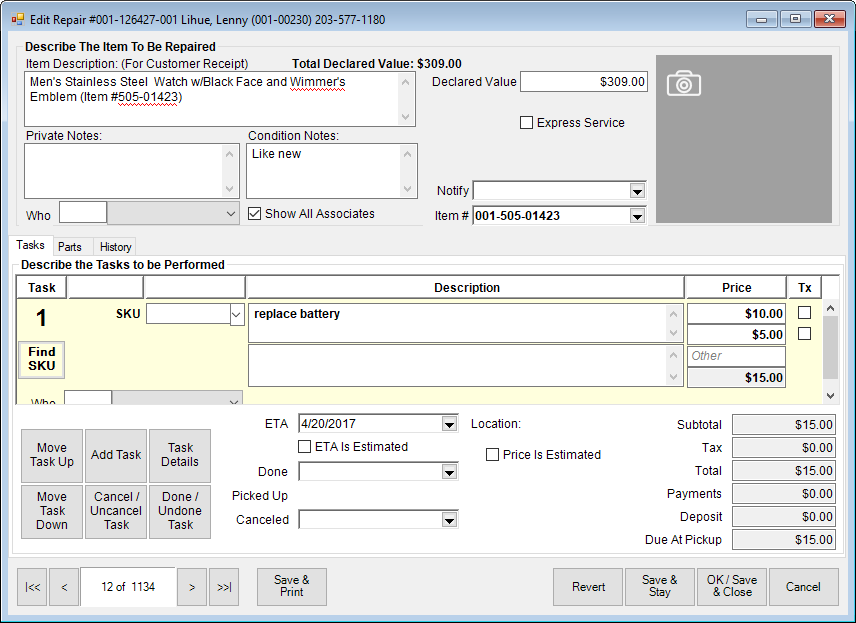
- Make changes as needed.
- Select OK/Save & Close.
Notice that these fields are very similar to the Repair Intake or Custom Job Intake window. See the section entitled Repair Intake or Custom Job Intake for more information about these windows.