After performing a Customer Find you will be presented with a Customer List showing all the customers that matched your search criteria. The resulting list resembles a spreadsheet with customer data separated into columns. This list is both interactive and customizable.
To customize this view:
- Rearrange column order by dragging and dropping column headers.
- Resize columns to desired widths.
- Hide columns by clicking the gear in the bottom right and unchecking the columns you don't want to see. You can also drag and drop columns to rearrange them in this view as well.
- Click Presets > Set As Default to make this the default list view from now on, or use Save Settings to save this view under a name so that it can be loaded as needed.
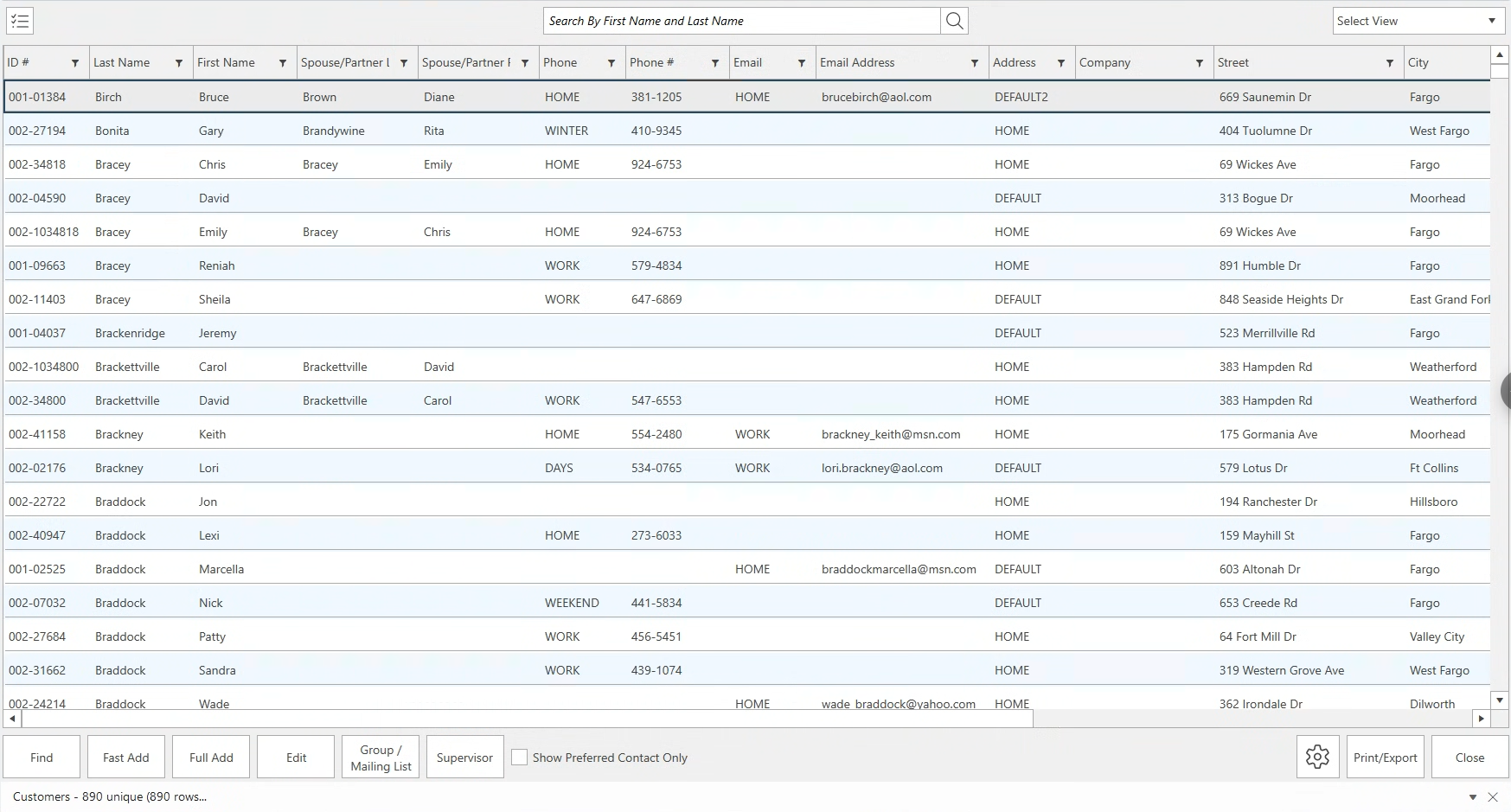
Buttons and options on this list view include:
| Checkbox Button |
Shows check boxes on the list. Also gives you the Check All and Check None options. |
| Search by First Name and Last Name |
Allows you to search for a specific First Name or Last Name in the current results list that you are viewing. |
| Select View |
This pull down allows you to choose your view. You will have options for Program Defaults, Most Recent or any saved settings. |
| Find |
Opens the Customer Find filter to search again. |
| Fast Add |
Opens the Fast Add screen to allow fast entry of a new customer. |
| Full Add |
Opens the Full Add screen to allow entry of a new customer with all fields available. |
| Edit |
Open the currently selected customer. |
| Group / Mailing List |
Create and manage group / mailing lists. See Group / Mailing Lists for more information. |
| Supervisor |
Opens the Supervisor menu giving you options to:
- Reassign Associates
- Add/Remove from Web Uploads (Shopify, Clientbook, Podium only)
- Set Customers Inactive
|
| Show Preferred Contact Info Only |
Check this to only see contact methods (phone, address, email) that are marked preferred; uncheck to see all |
| Gear Button |
Opens the Customer List Column Selection where you can arrange/hide your columns. This also contains the Presets button which opens the Presets menu allowing you to make the current view the default, restore the original program default view, or save/load view settings under specific names for later use. |
Print/Export |
Opens a Print Preview of the current list; while it is possible to print lists, you will get more print-friendly output by using Customer Reports instead. You can also choose to Export this list. |
| Close |
Closes the current window in the Edge |